By clicking “Accept,” you consent to the storage of cookies on your device to improve website navigation, analyze site usage, and support our marketing efforts. See our Privacy Policy for more information.
Quick insertions let you create predefined text blocks and insert them in one click right into your clinical note. It is a simple way to save time on wording you use often, without rewriting it every visit.
Creating a quick insertion
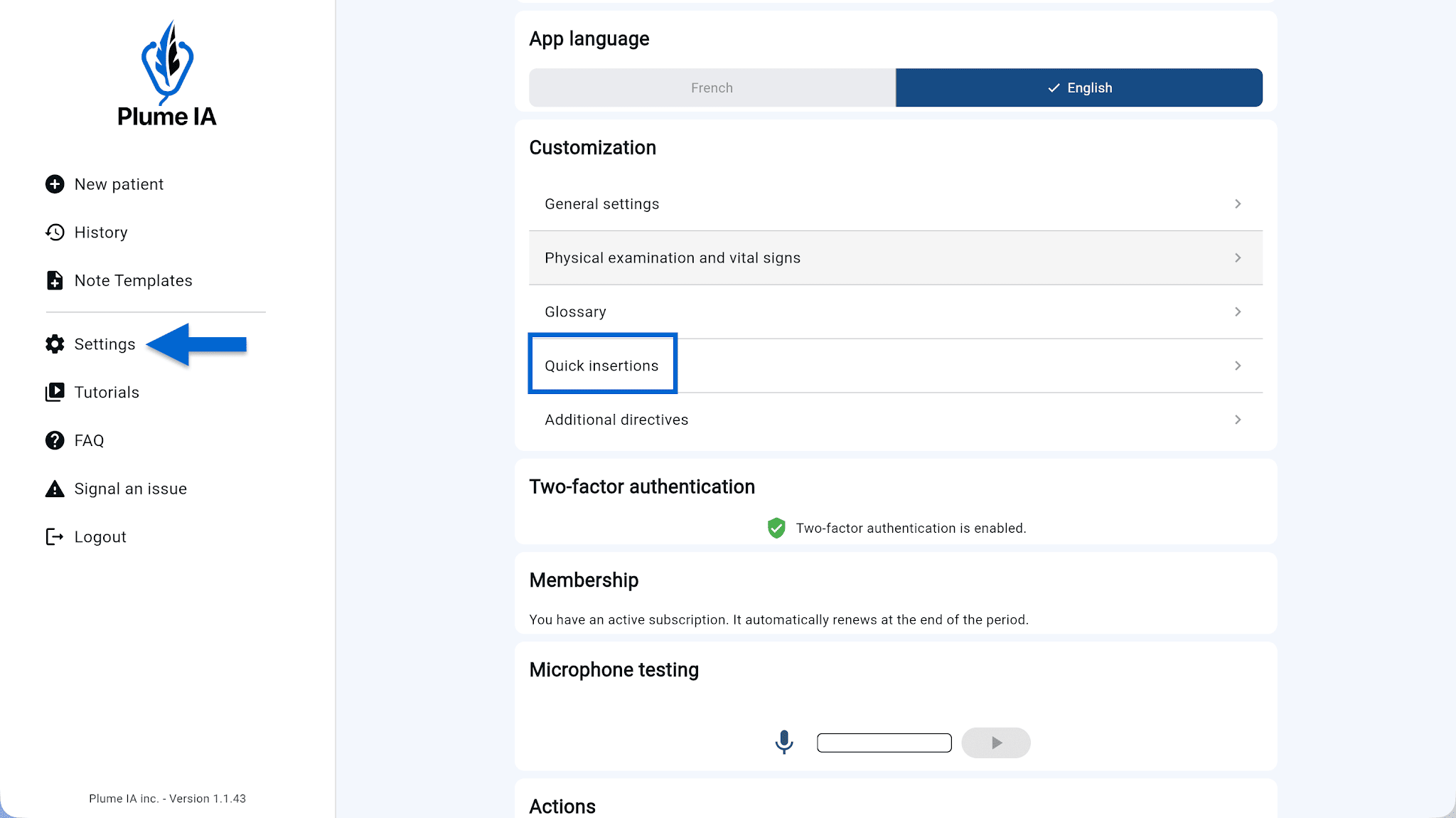
Go to Settings → Quick insertions → Quick insertion templates.
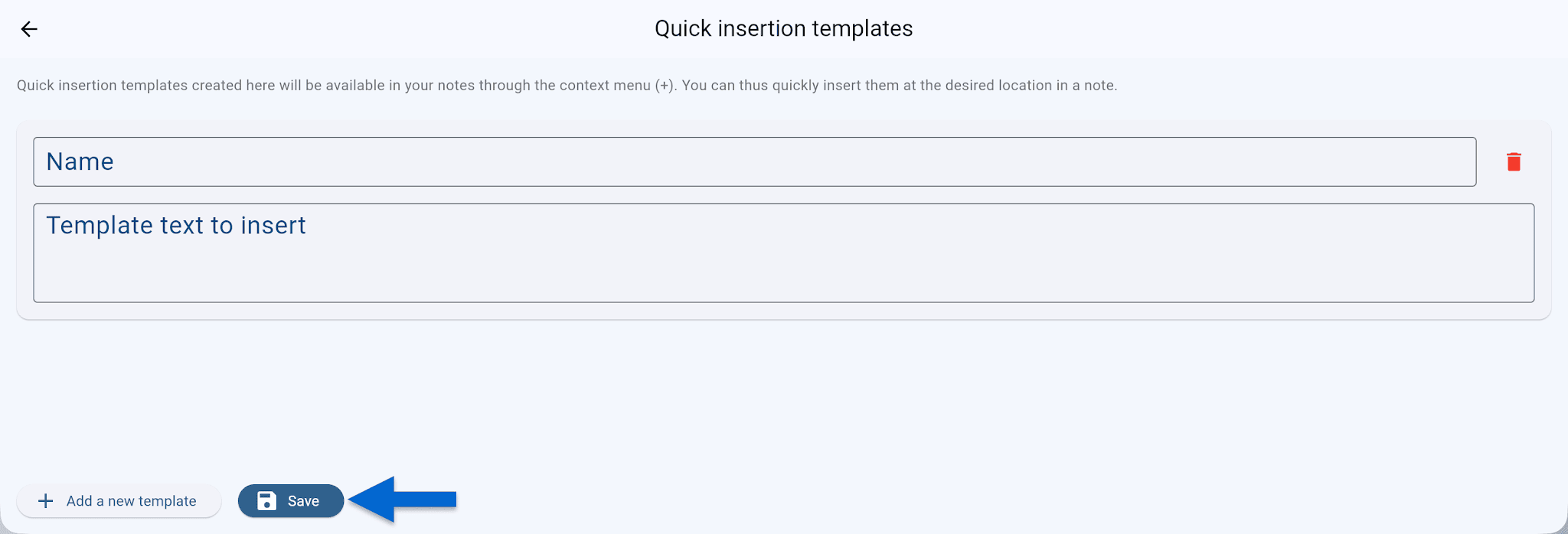
Click + Add new template.
In the Name field, give your template a clear, recognizable name.
In the Template text to insert field, write the full text you want to insert.
Click Save.
You can create as many quick insertions as you need. To remove one, click the trash icon to the right of the template.
Using a quick insertion in a note
Open a generated clinical note.
Click the + button in the note editor.
Choose Quick insertion: your templates appear.
Click the template you want—the text is inserted into the note automatically.
💡 Tip: The more quick insertions you build for your practice, the faster and more consistent your documentation becomes from one visit to the next.