By clicking “Accept,” you consent to the storage of cookies on your device to improve website navigation, analyze site usage, and support our marketing efforts. See our Privacy Policy for more information.
Edit, reorder, and duplicate your templates from the Note Templates page.
Edit an existing template
Click the template you want to edit in your list (left side).
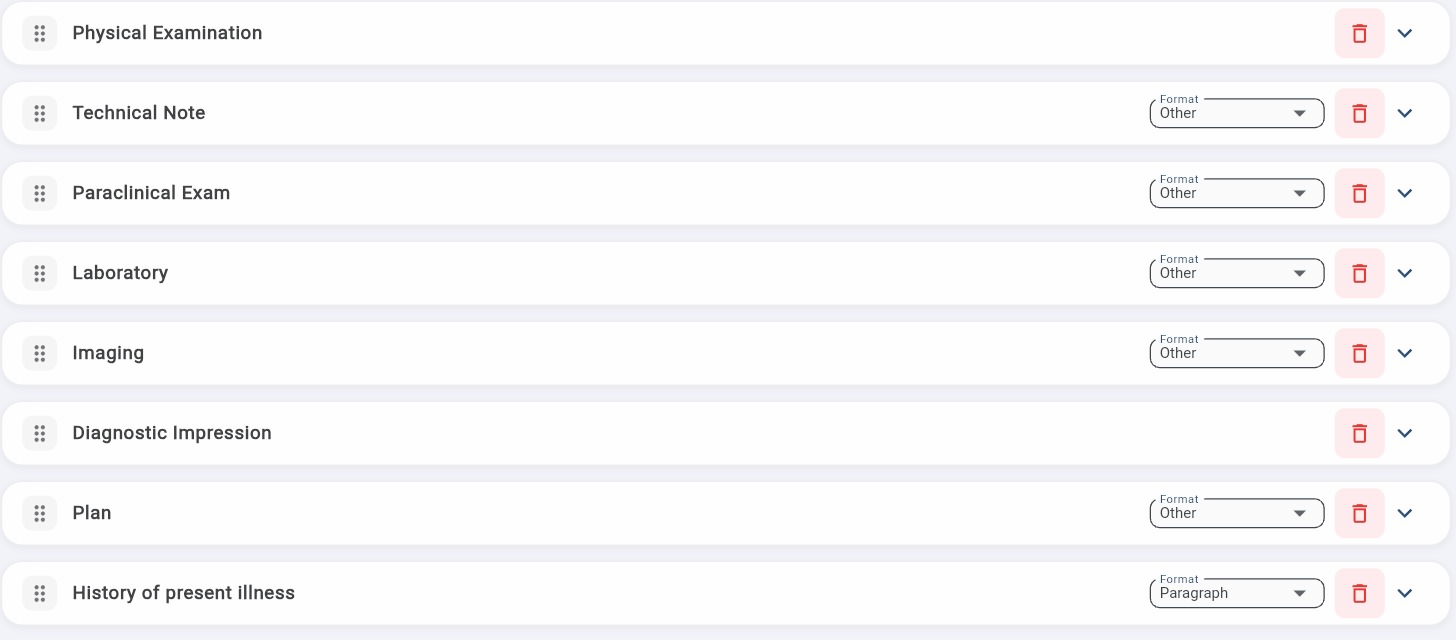
Edit sections, format, or content directly.
Click Add a section to add a blank section.
To delete a section, click the red trash icon on the right side of that section.
Click Save to keep your changes.
Reorder sections
Sections can be reordered by drag and drop (the ⋮⋮ icon on the left of each section). The order in the template matches the order in the generated note.
Duplicate a template
The Duplicate this template button (bottom-left) creates an identical copy.
Useful for:
Testing changes without affecting your production version.
Creating variants for different contexts (e.g., short follow-up vs full assessment).